Integrate
Seamlessly integrate Checkout with your Miva store by following the steps in this section.
Get started
Start by completing our sign-up form. Onboarding will commence once your account agreement is in place.
Onboarding
Within 24 hours of signing up, a dedicated onboarding representative will contact you to kick off a tailored integration process.
Important: The steps listed below are for your reference and you will be guided through them by your onboarding representative.
Install the Checkout module
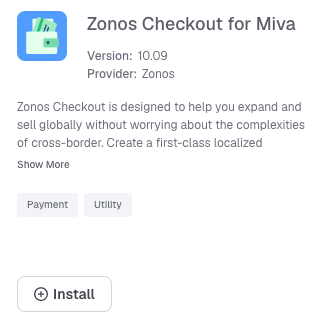
- Download the module from the Miva App Store, or request the
zonos.mvcfile directly from Zonos. - In your Miva admin, go to Domain Settings -> Modules -> Add Module, upload the
zonos.mvcfile, and click Add.

- Go to Settings -> Modules, find Zonos, and click Install. Confirm it displays as Installed.
Create an API token
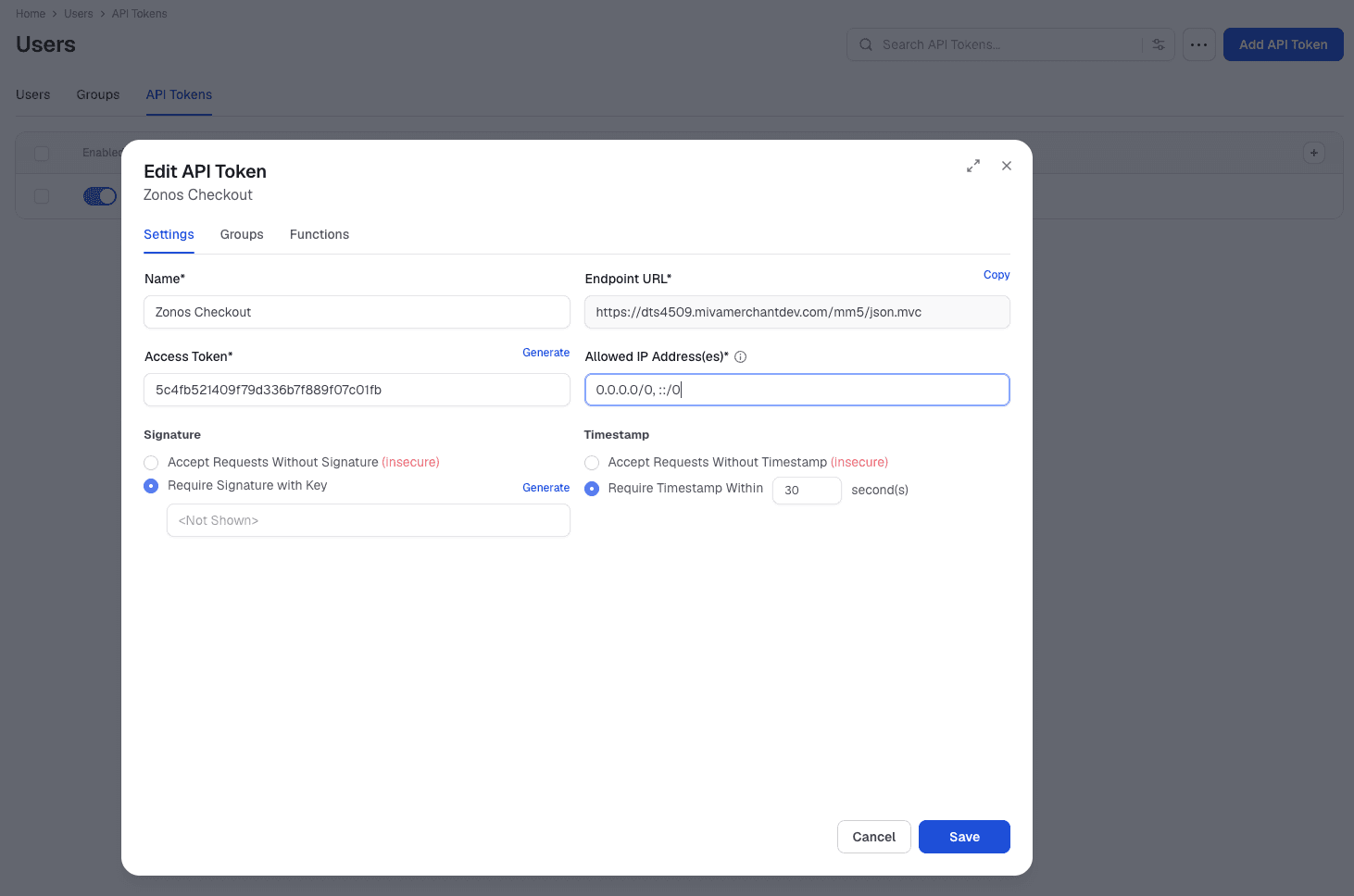
In Miva, go to Users -> API Tokens and click Add API Token. Configure it as follows:
- Name: Zonos Checkout
- Allowed IP Addresses:
0.0.0.0/0, ::/0 - Signature: Require Signature with Key -- click Generate to create a signing key
- Timestamp: Require Timestamp Within 30 seconds
Assign the role-based group
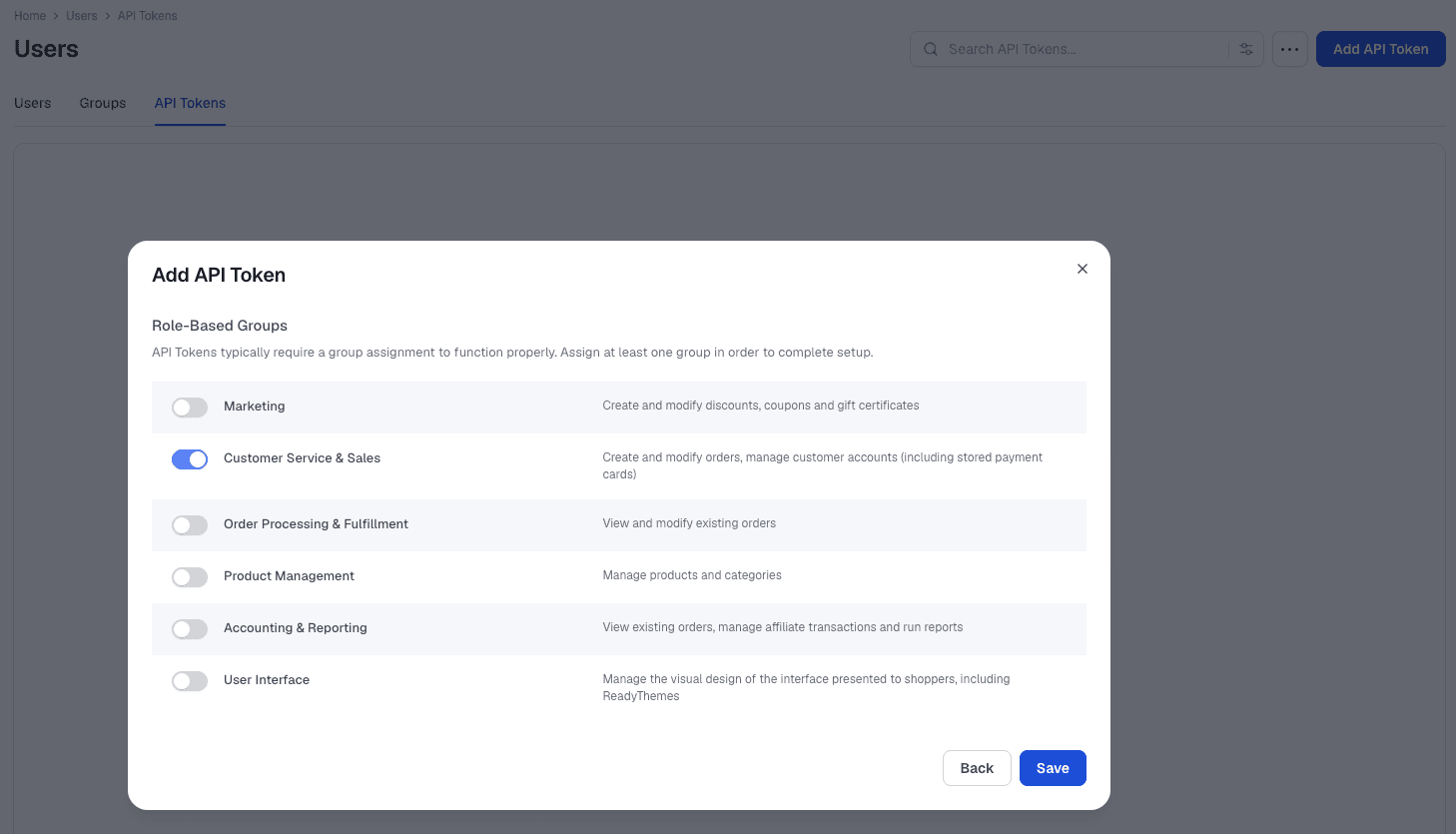
On the next screen, enable Customer Service & Sales to allow the token to create and modify orders. Click Save.
Configure Zonos settings
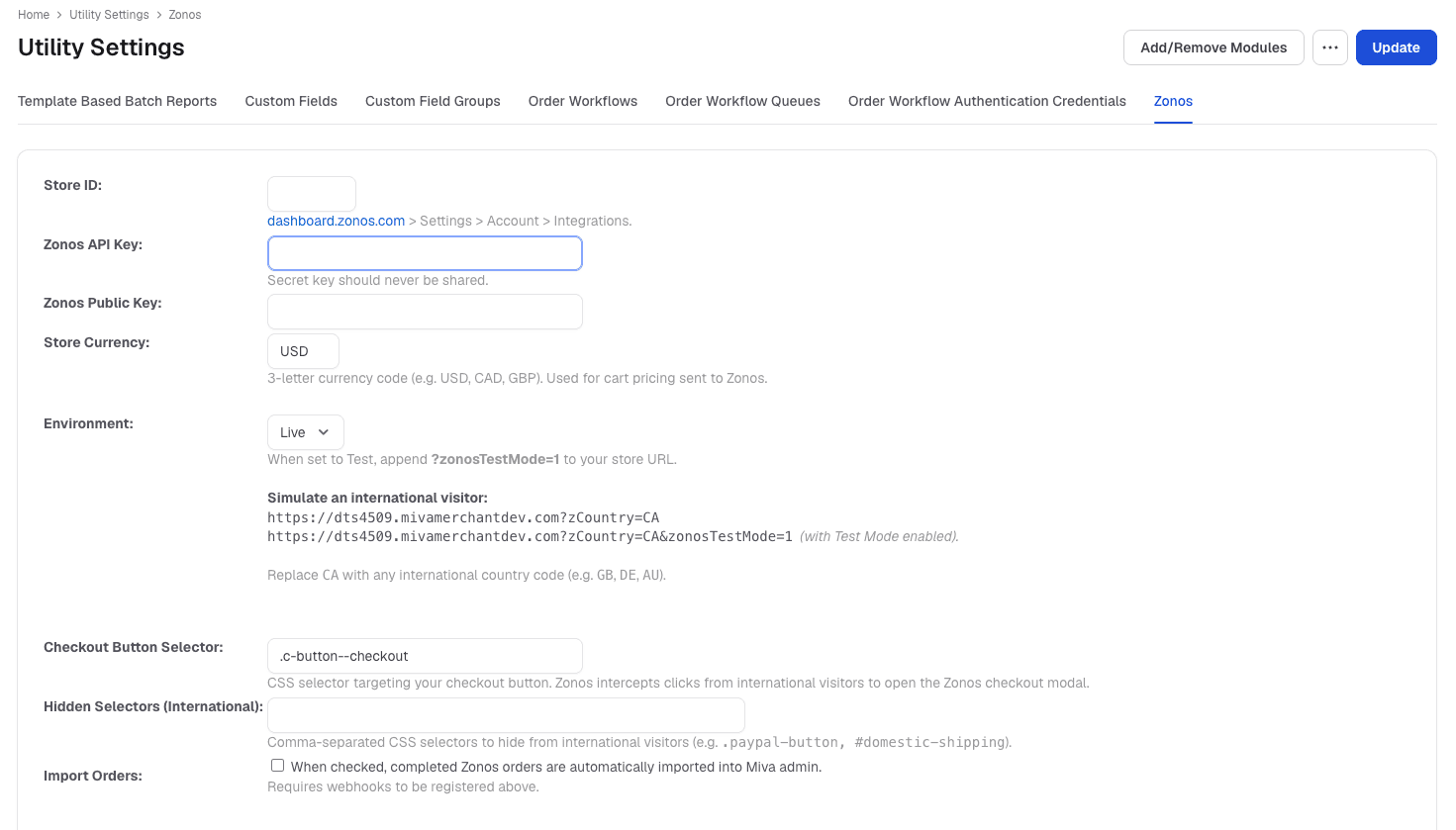
Navigate to the Checkout module in Miva by going to Miva -> Utility Settings -> Zonos, then fill in the following fields:
- Store ID: Copy your Zonos account number from Dashboard -> Settings -> Account -> Integrations.
- Zonos API Key: Your secret API key (never share this).
- Zonos Public Key: Your public key.
- Store Currency: Your store's base currency (e.g., USD).
- Environment: Select Live for production or Test for testing.
- Checkout Button Selector: CSS selector for your checkout button (example:
a[href*="checkout.html"]). - Hidden Selectors: For hiding domestic payment options and other details that may not pertain to international customers.
- Import Orders: Check to automatically import completed Zonos orders into Miva admin. This requires webhooks to be registered in the next step.
Click Update in the top right to save before continuing.
Orders are imported via webhook in the 10.x module. Previous module versions used an order success URL/endpoint instead.
Register webhooks
After saving your settings, click Register Webhooks. This connects your store to Zonos so that completed orders are automatically imported, cancellations are synced, and shipping updates are pushed back to Miva.
Webhooks must be registered before order importing, cancellation sync, and shipping updates will work. The Import Orders checkbox requires webhooks to be registered.

Enter API token details
Scroll down to complete the remaining fields:
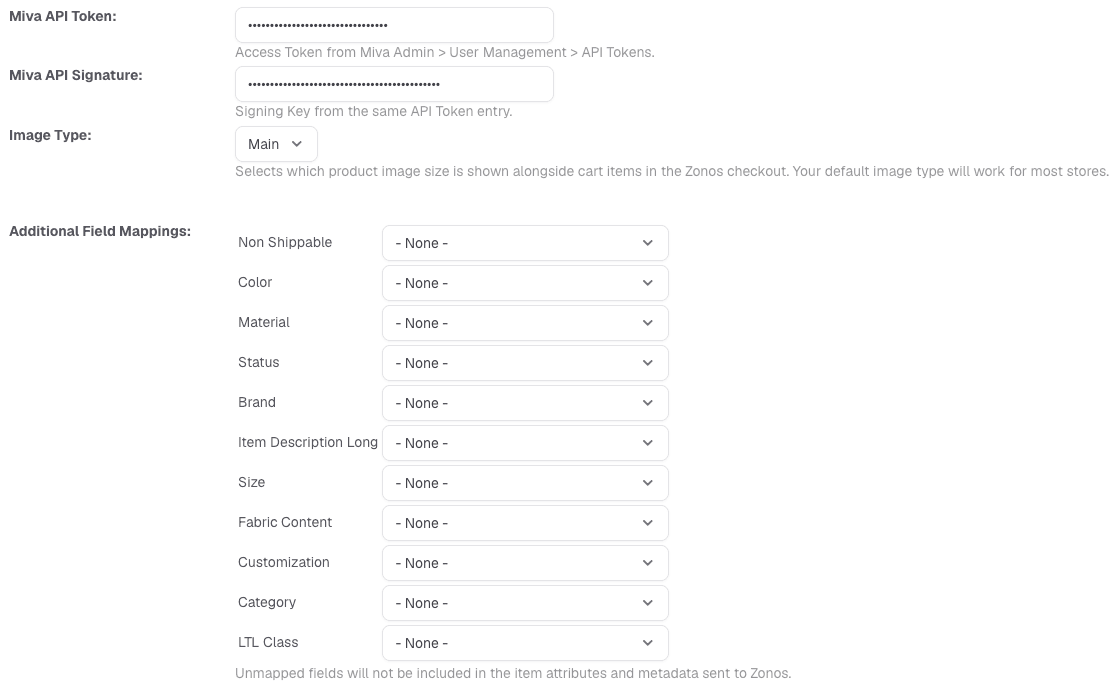
- Miva API Token: The Access Token from the API Token you created in the Create an API token step.
- Miva API Signature: The Signing Key from the same API Token entry.
- Image Type: Selects which product image size is shown in the Zonos checkout (Main works for most stores).
- Additional Field Mappings: Optionally map Miva custom fields to Zonos attributes/metadata (color, material, size, etc.). We recommend mapping HS code if you have set product-specific HS codes in your Miva product listings. This is not required to produce a duty and tax quote since we can use product-specific HS codes you have entered into Catalog or use your default HS code. However, it is recommended; the accuracy of landed cost calculations will greatly increase with correctly classified products. To map a field in Miva, create a custom field for the HS code and then map it under Utility Settings -> Zonos.
Click Update to save all settings.
Test your integration
Now that you have set up your account and your module, you are ready to test by doing the following:
- Test shipping quotes
- Place a test order on your site
- Test order flow through your systems
- Test your website
Learn how to run these tests. You will need to set the module's Environment field to Test while testing.
After completing testing, you are now ready to go live! Set Environment to Live, confirm your Zonos credentials are correct, and make sure webhooks are registered on your live store.
Optional: enable currency conversion
To display prices in the visitor's local currency on your storefront, configure currency conversion in the Zonos dashboard.
Set up currency conversion
- Go to dashboard.zonos.com -> Hello -> Hello Settings.
- Toggle Currency behavior on.
- Enter the CSS selector that targets your product price elements (e.g.,
.price).
Zonos Hello will automatically convert and display prices in the shopper's local currency when this is enabled.

Shipping rules
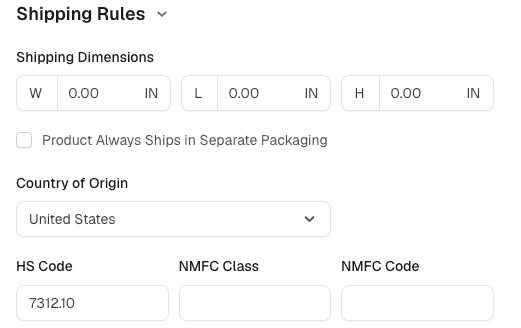
Shipping dimensions, country of origin, and HS code set in the Miva catalog map through to Zonos automatically and are used for landed cost / shipping quotes if populated. There is no additional mapping required to configure.
Basket item dimension columns
If your store sells configurable products where all variations share a single SKU, Miva's standard Product Shipping Rules store one set of dimensions per product, so every configuration is treated as the same size regardless of what the customer selected.
Miva and Zonos support dimensions at the variant level, but that requires setting up each variant individually. This may be impractical for stores with hundreds or thousands of configurations that don't map to discrete variants.
This feature solves that by reading per-configuration dimensions directly from the basket at checkout, using whatever custom logic your store already has in place to calculate them -- for example, parsing dimensions out of the product description.
Requirements
- Your store must already populate custom dimension columns on basket items when items are added to the cart (handled on the Miva side, outside the scope of the Zonos module).
- You'll need to know the exact column names you're using.
Configuration
Enter those column names into the three corresponding fields in the Zonos module admin. Leave them blank to fall back to standard Product Shipping Rules -- the feature is fully opt-in and won't affect stores that don't use it.

Shipping & tracking sync
When a shipping label is created or a tracking number is entered in the Zonos Dashboard, the tracking number and shipment status are automatically pushed to the corresponding order in Miva admin. This requires webhooks to be registered (see the Register webhooks step above).
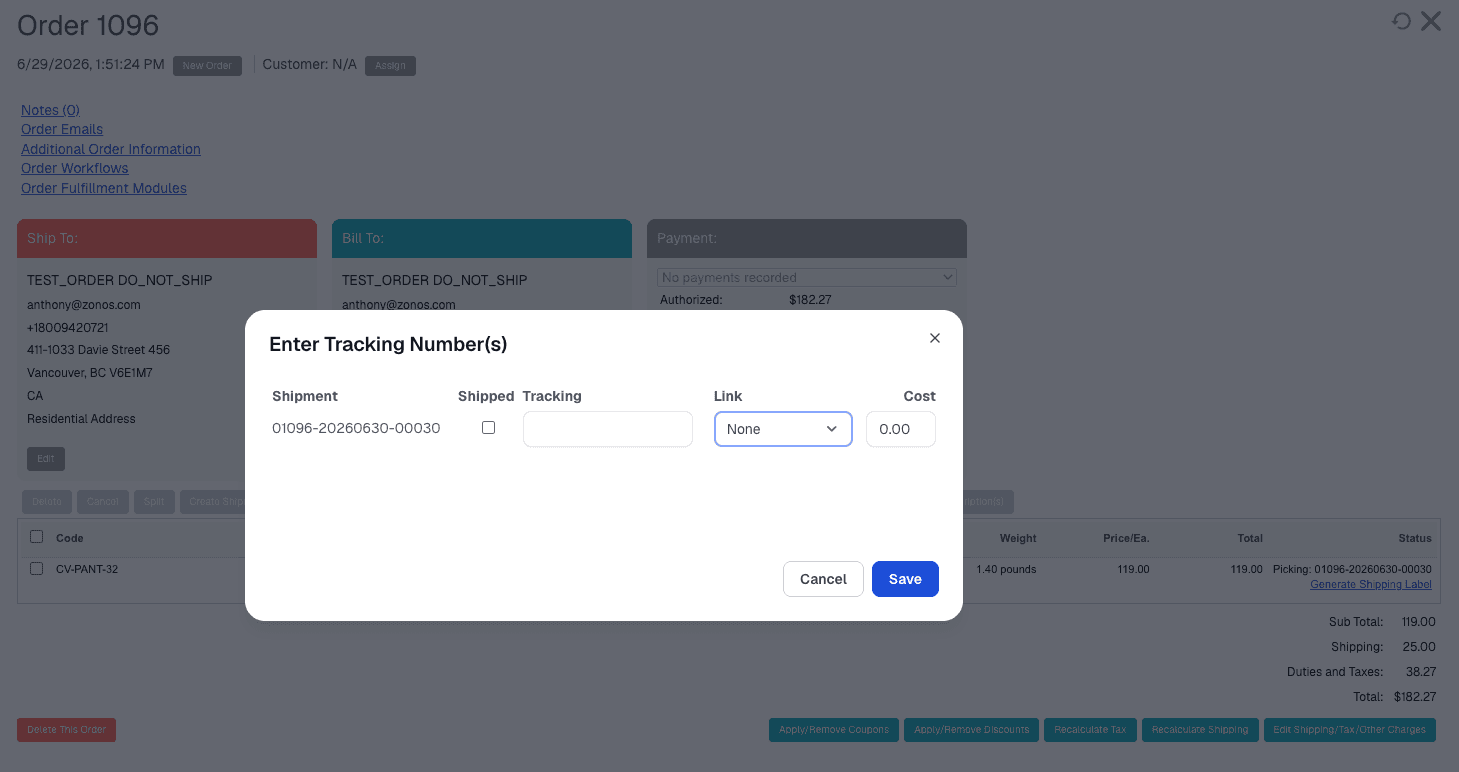
Tracking can also be entered directly in Miva. Use the Enter Tracking Number input dialog on any Zonos order -- the tracking number and shipment status will sync back to the Zonos Dashboard automatically.
Debug log
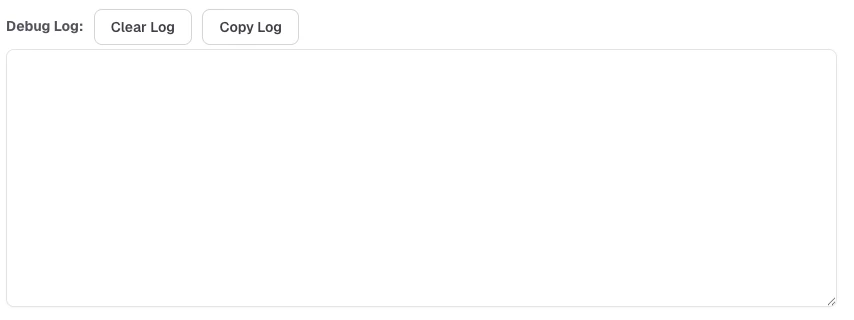
The debug log is accessible inside Miva admin, under the Zonos module settings. It records the full lifecycle of every order event the module processes -- imports, tracking syncs, cancellations, and outbound cancel requests to Zonos -- including both successes and failures inline.
Each entry includes the Zonos order ID, the Miva order ID, and, where relevant, customer-level details such as the error response from the Miva or Zonos API. This makes it the most complete source of information for diagnosing issues.
The log retains only the most recent 500 lines. Older entries are not archived, so check it promptly after an issue occurs -- earlier events may already have been overwritten.
Public error log (no login required)
A second, public-facing log is available via direct URL -- no Miva admin login required. It records errors only (no successes) and contains no customer PII or sensitive data. Every entry is prefixed with the module version (e.g., [v10.09]) for quick identification.
URL format:
https://[store-domain]/mm5/json.mvc?Store_Code=[miva_store_code]&Function=Module&Module_Code=igs&Session_Type=runtime&Module_Function=JSON_WebHook&publiclog=1
Example:
https://dts4509.mivamerchantdev.com/mm5/json.mvc?Store_Code=Test&Function=Module&Module_Code=igs&Session_Type=runtime&Module_Function=JSON_WebHook&publiclog=1
Store Code: The
miva_store_codeis returned in the metadata array of the API response for all dashboard orders -- no need to ask the merchant for it.
Order cancellation & refunds
All payment refunds must be processed directly through the Zonos dashboard. The Refund, Capture, and Void buttons in Miva are not available for Zonos-imported orders by design. Any refunds processed in Zonos will not automatically update payment amounts on the corresponding Miva order -- the Miva order retains the original captured amounts and is not kept in sync with refund activity in Zonos.
For order cancellations, behavior depends on the order's current status:
- Open (not yet shipped): Cancelling it in Miva will also cancel it in Zonos and void the payment authorization. Because Zonos does not capture payment until an order ships, the customer is never actually charged and no separate refund is required.
- Shipped or Completed: Cancelling in Miva will mark the Miva order cancelled, but Zonos will reject the cancellation because the order has already been fulfilled and no longer qualifies for automatic cancellation. In this case, an admin-only note is added to the Miva order -- visible only to store staff and never to the customer -- explaining that the order needs to be handled in Zonos. An email notification is also sent to the store account's primary email address alerting the merchant to take action in the Zonos dashboard, where they can process any applicable refund manually.
Troubleshooting: orders not appearing in Miva on dev/staging sites
Symptom: Orders complete in Zonos Checkout and appear in the Zonos dashboard, but nothing shows up in Miva admin.
Cause: Zonos sends an ORDER_CREATED webhook (HTTP POST) to your store's /mm5/json.mvc endpoint. On dev sites, server-level security often blocks this request before it reaches Miva. Common culprits:
- HTTP Basic Auth -- If the dev site has a password prompt (Plesk, cPanel, .htaccess, etc.), the webhook gets rejected with a 401 Unauthorized. Whitelist Zonos's IPs in your .htaccess or Plesk config so they bypass the auth prompt.
- Cloudflare WAF / IP Access Rules -- If the site is proxied through Cloudflare, its security rules may block the POST before it reaches your server. Add a WAF rule to allow POST requests where the URL path contains
/mm5/json.mvc, or whitelist Zonos's IPs directly in Cloudflare's IP Access Rules. - Server-level IP allowlist -- If the dev site restricts traffic to specific IPs only (common on staging environments locked down to office or platform IPs), Zonos webhook requests are silently dropped with no response. Add all Zonos webhook delivery IPs to your server's allowlist (Plesk IP Access Restriction Manager, cPanel IP Blocker, or your firewall/hosting panel security rules).
Zonos webhook delivery IPs
195.85.106.100/32
67.207.37.24/29
18.118.243.230/32
18.191.115.116/32
18.216.243.49/32
18.218.198.53/32
18.221.118.18/32
18.223.39.35/32
3.128.123.176/32
3.132.179.92/32
3.138.165.252/32
3.19.11.176/32
3.22.153.63/32
52.15.215.38/32
This typically only affects dev/staging sites -- production Miva sites are usually public and don't need IP whitelisting. If unsure how to configure this, contact your hosting provider or Miva support.
What product information should I provide for the most accurate quote on duties, taxes, and shipping costs?
Product information can impact the amount of duties and taxes due and the shipping cost. The more product information you provide to Zonos, the more precise the quote returned will be. Zonos can generate a quote even when this information is unavailable, but recommends providing the following key product details to improve accuracy:
- Weight: Weight impacts your shipping cost, which can affect duties or taxes. Weights in your Miva product listings are automatically used by Zonos when present.
- Dimensions: Dimensions may impact your shipping cost, which can affect duties or taxes. Zonos can utilize product dimensions (length, width, and height) set on each product in Miva, but you must map it in the Zonos app for proper integration.
- HS codes: HS codes impact duty rates and can sometimes affect taxes. Zonos can use the HS codes set in your product listings in Miva, but you must map the HS code field in the Zonos app.
- Country of origin: A product's country of origin impacts duty rates and may affect taxes. Miva cannot send the country of origin for your products to Zonos so they must be added using Zonos Catalog.
Product details passed to Zonos by Miva
| Product details↕ | Weights↕ | Dimensions↕ | HS code↕ | Country of origin↕ |
|---|---|---|---|---|
| Automatically passed | ||||
| Must be mapped | ||||
| Add with Catalog |
Note: Alternatively, you can enter any of the above info into Catalog, overriding the information stored and passed from Miva.
Learn more about product info by platform.
Checkout for Miva
Integrate the Checkout module (v10.x) for Miva.Follow the steps in this guide to integrate Zonos Checkout with your Miva store.